 fswitcher
 › Guides
Why Command-Tab doesn't restore minimized windows, and how to get them back
You minimize a window, switch away, press Command-Tab to go back, and the menu bar changes but the window stays in the Dock. That's how Command-Tab works on the Mac. It brings an app forward, not a window, and it leaves minimized windows where they are.
Short answer: to bring back the most recently minimized window from the keyboard, press Command-Tab and select the app. Keep Command held down, then press and hold Option. Release Command, then release Option.
The rest of this page covers why it happens, the Option trick step by step, the usual ways to restore a window with the pointer, and what to do if you'd rather not deal with it at all.
Why Command-Tab leaves minimized windows in the Dock
Command-Tab switches between apps. Apple describes it as "switch to the next most recently used app among your open apps." When you pick an app, macOS makes it the active app and shows the windows it already has on screen. It doesn't decide for you which minimized window you wanted, so it doesn't restore any of them.
If all of an app's windows are minimized, you get the app's menu bar and nothing else. The same thing happens when an app has no windows open at all, or when its windows are on another desktop. That last case has its own setting, covered in Command-Tab jumps to another desktop, or shows no window.
There's no setting in System Settings that makes Command-Tab restore minimized windows. The Option trick below is the built-in way around it.
The fix: hold Option as you switch
This restores the most recently minimized window of the app you switch to, or brings up a window if the app has none open. It works from the switcher, with no extra apps.
⌘+tabthen holdoptionand let go of⌘first
- Hold Command and press Tab until the app is selected in the switcher.
- Keep Command held down.
- Press and hold Option.
- Release Command.
- Release Option.
The order matters. If you release Option before Command, you get a normal switch and the window stays minimized.
A few things to know:
- It brings back one window, the one you minimized last. For a different one, pick it from the app's Dock menu or Window menu, below.
- If the app has no windows open, the same trick brings up a window.
Other ways to bring a window back
These are the usual ways, and they all need the pointer. Where a minimized window waits depends on the "Minimize windows into application icon" setting, covered below.
- Click the window's thumbnail in the Dock. With the setting off (the default), each minimized window sits as its own thumbnail on the right side of the Dock, near the Trash. With it on, there's no thumbnail. Use the app's icon instead.
- Click the app's icon in the Dock when all of its windows are minimized, and the top one comes back. This works with the setting on or off. If the app has another window open, clicking the icon brings that one forward instead.
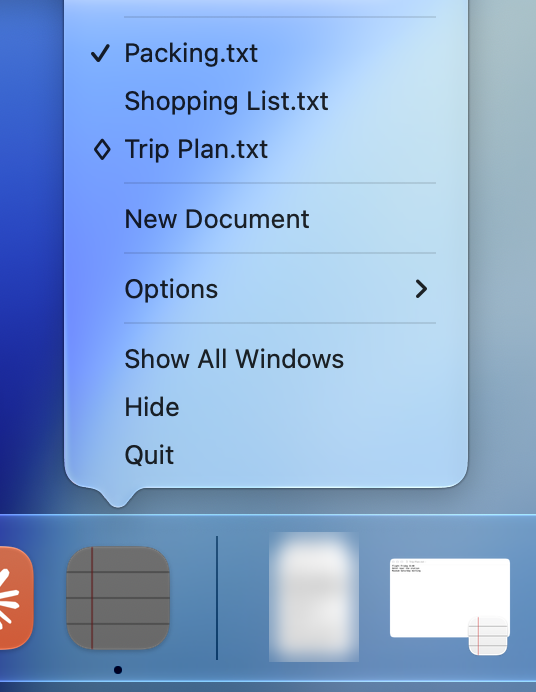
- Control-click the app's icon in the Dock (or click and hold it) to see a list of its windows. Minimized windows are marked with a diamond. Pick one to restore it.
- Use the app's Window menu. Most apps have one in the menu bar. It lists the app's windows, with a diamond next to minimized ones. This is handy right after Command-Tab shows you only the menu bar, since the app is already in front.
Mission Control won't help. Control-Up Arrow shows only open windows. Its view of one app's windows (Control-Down Arrow, or Down Arrow while the Command-Tab switcher is open) leaves minimized windows out too, with the setting on or off, and when they're all minimized it shows "No available windows."
Which method to use
| Method | Keys or action | What comes back | Keyboard only |
|---|---|---|---|
| Option trick | Command-Tab to the app, hold Option, release Command, then Option | The most recently minimized window | Yes |
| Hide instead (below) | Command-H to hide, Command-Tab to return | All of the app's hidden windows | Yes |
| Dock thumbnail | Click the minimized window in the Dock (setting off) | That window | No |
| Dock icon | Click the app icon when all its windows are minimized | The top minimized window | No |
| Dock icon menu | Control-click the app icon, pick a window with a diamond | The window you pick | No |
| Window menu | Window menu in the menu bar, pick a window with a diamond | The window you pick | Mostly no |
| fswitcher (below) | Command-Tab to the app, as usual | Its window, even when all are minimized | Yes |
For one window from the keyboard, the Option trick is fastest. For a specific window, use the Dock menu or the Window menu. To skip the Option key, fswitcher, covered below, brings minimized windows back with a plain Command-Tab.
Hide instead of minimize
If you minimize windows mostly to clear the screen, hiding the app works better with Command-Tab.
- Command-H hides all of the front app's windows.
- Option-Command-H hides all other apps and keeps the current one visible.
When you Command-Tab back to a hidden app, its windows come back with it, with no extra keys. You can also hide an app from inside the switcher: with the app selected and Command still held, press H.
The trade-off: hiding works on the whole app. You can't hide one Safari window and leave the others up. If that's what you need, minimizing plus the Option trick is still the way.
If you minimize windows by accident, check what a double-click on a title bar does. In System Settings > Desktop & Dock, set "Window title bar double-click action" to Zoom or Fill instead of Minimize. Also note that Option-Command-M minimizes all windows of the front app, which is easy to hit by mistake.
What the "Minimize windows into application icon" setting changes
This setting is in System Settings > Desktop & Dock. Apple describes it as "minimize an app window to the app icon in the Dock."
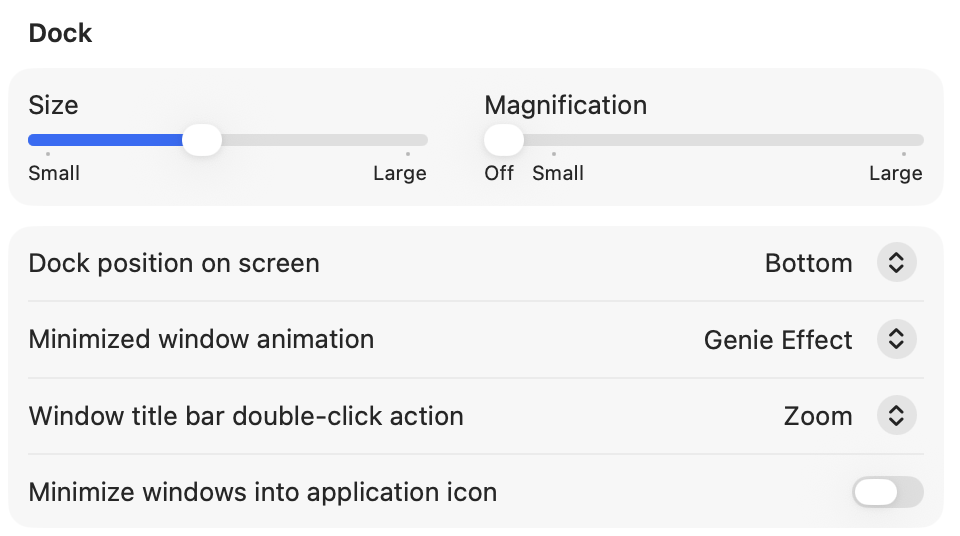
With it off (the default), each minimized window gets its own thumbnail on the right side of the Dock, and you click the thumbnail to bring it back. With it on, minimized windows go behind the app's icon instead, which keeps the Dock from growing every time you minimize something. Many people prefer it that way.
It only changes where minimized windows sit in the Dock. Command-Tab still switches to the app and leaves its minimized windows alone. People often turn it on hoping Command-Tab will then restore the window, and it doesn't.
With the setting on, there's no separate thumbnail to click. Click the app's icon when all of its windows are minimized, or use the Option trick, the app icon's menu, or the Window menu.


Make Command-Tab bring minimized windows back
There's no setting for it, so the only way to change what Command-Tab does is an app.
fswitcher is made to look and feel like the Command-Tab you already use. It's on the same shortcut, it looks like Apple's switcher, and the keys you know work the same way, like Q to quit and H to hide. It just adds what's missing, starting with windows. Each minimized window sits small along the bottom of the desktop it belongs to, out of the way of your open windows but still in the switcher. Switch to it as usual and it comes back, with no Option key.
It's a one-time purchase of $14.99 with a 7-day free trial, and it needs macOS 26 or later. See how fswitcher works
If you'd rather keep Apple's switcher, two small apps change only this. TabLift is free and open source and needs macOS 13.5 or later. Command Reopen is $4.99 on the Mac App Store, needs macOS 12 or later, and also reopens windows you closed.
Common questions
Why doesn't Command-Tab restore minimized windows?
Command-Tab switches apps, not windows. It brings the app to the front and shows the windows that are already open. Minimized windows stay in the Dock until you restore them with the Option trick, the Dock or the Window menu.
Is there a setting that makes Command-Tab restore minimized windows?
No. System Settings has no option for it, and "Minimize windows into application icon" only changes where minimized windows sit in the Dock. To change the behavior you need a third-party app such as fswitcher, TabLift or Command Reopen.
Why do I see only the menu bar after Command-Tab?
The app is active but has no visible window on the current desktop. Either all its windows are minimized, it has no windows open, or its windows are on another desktop. Open the app's Window menu to see its windows, or press Command-N to open a new one. Next time, the Option trick restores a minimized window, or brings up a window if there is none, as you switch. For the desktop case, see Command-Tab jumps to another desktop, or shows no window.
Does Command-` switch to minimized windows?
No. Command-` cycles through the open windows of the current app on the current desktop and skips minimized ones. More on that in how to switch between windows of the same app.
How do I restore all of an app's minimized windows at once?
There's no keyboard shortcut for it. If you often need this, hide the app with Command-H instead of minimizing. Command-Tab then brings all its windows back together.
Where do minimized windows go when Stage Manager is on?
They move to the strip of recent apps on the left side of the screen. Click one there to restore it.