 fswitcher
 › Guides
Why Command-Tab shows up on the wrong monitor, and how to fix it
Short answer: On a Mac with more than one display, the Command-Tab app switcher opens on the active display: the one with the window you last clicked or switched to. It doesn't follow your pointer, the Dock, or the main display. To get it on the screen you want, click something on that screen first (Fix 1), or turn on a hidden setting that shows the switcher on all displays (Fix 2).
The switcher follows the active display
The Command-Tab switcher is drawn by the Dock process, but it doesn't follow the Dock. macOS shows it on the active display, the one that holds the window you're working in. You can tell which display that is from the menu bar: the active display's menu bar is shown in full, and the others are dimmed.
Pointer on the other display
Dock on the other display
Click on the empty desktop
Clicking makes a display active. Click a window, or an empty part of the desktop, and that display becomes the active one. Moving the pointer to another display doesn't change it, so the switcher can open on a screen you're not looking at.
Switching apps moves it too. When you switch to an app whose window is on the other display, that display becomes active. The next Command-Tab opens there, even if your pointer and your eyes are still on the first display. That's why it can seem random.
The Dock and the main display don't matter. In our tests on macOS 27, the switcher opened on the active display with the Dock at the bottom of either display, on the left side, and hidden. It also ignored which display was set as the main display.
Why the advice online disagrees
If you've searched this before, you've probably read that the switcher follows the Dock, your pointer, or the main display. On macOS 27 it follows none of them. Each idea lines up with the real rule some of the time, which is why each one seems to work.
You usually click where your pointer is, so the switcher seems to follow the pointer. The main display is often the one you work on, so it seems to follow the main display. And much of the Dock advice was written for earlier versions of macOS.
The rule underneath all of these is the active display.
Fix 1: Click the screen you're using
This works right away and changes no settings.
- Click an empty spot on the display where you want the switcher, such as a window's title bar or the desktop.
- Press Command-Tab. The switcher opens on this display.
The downside is that it doesn't stick. The next time you click, or switch to an app, on the other display, the switcher moves back. If you work across screens all day, Fix 2 will suit you better.
Fix 2: Show the switcher on all displays
macOS has a hidden setting that draws the switcher on all connected displays at once. Apple doesn't list it in System Settings, so you set it in Terminal. It's a preference for the Dock, it's easy to undo, and it doesn't touch any of your files.
- Open Terminal (Applications > Utilities > Terminal).
- Paste this line and press Return:
defaults write com.apple.dock appswitcher-all-displays -bool true - Paste this line and press Return to restart the Dock:
killall Dock - Press Command-Tab. The switcher now appears on each display.
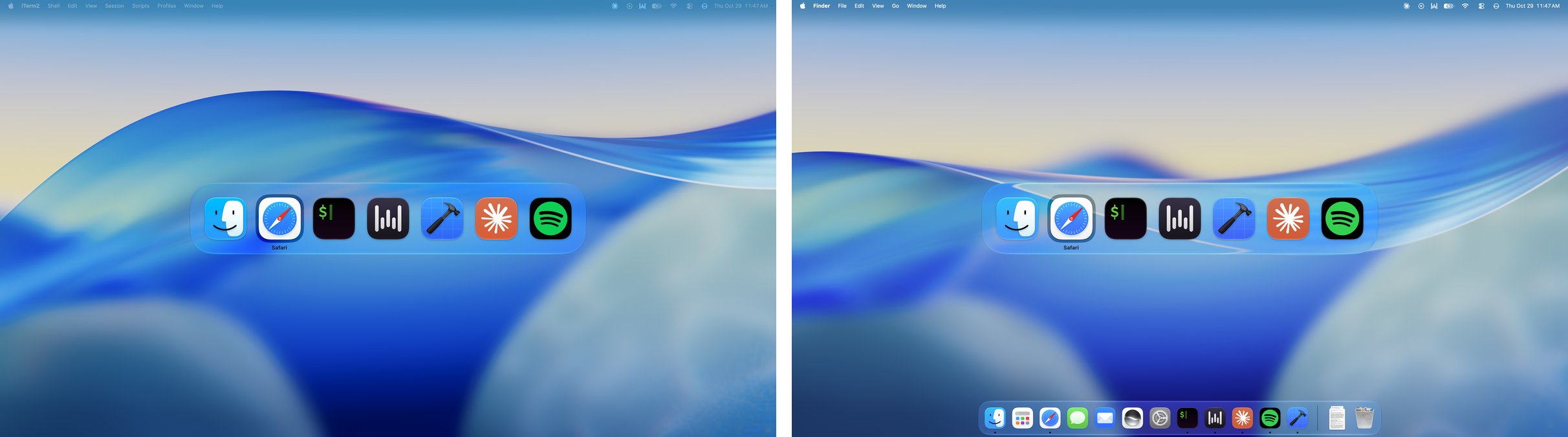
Restarting the Dock makes the screen redraw for a second. Your apps and windows stay open.
To undo it, run these two lines:
defaults write com.apple.dock appswitcher-all-displays -bool false
killall Dock
It's the same switcher shown in more places. It doesn't change how switching works, only where you can see it.
Which fix fits your setup
| Fix | Where the switcher opens | Trade-off | Undo |
|---|---|---|---|
| 1. Click the screen you're using | The display you clicked | Doesn't stick; it moves when you click or switch to an app on another display | Nothing to undo |
| 2. Terminal setting | All displays at once | Undocumented; could change in a macOS update | Run the undo command |
If you're not sure, start with Fix 2. It works no matter which display is active.
What these fixes don't change
Both fixes change where the switcher appears. Neither changes what it does, and that is where people with several displays still get stuck.
- It's one list for the whole Mac. The switcher shows all open apps in one row, with no sign of which display their windows are on.
- It switches apps, not windows. Picking an app brings that app forward. If it has windows on two displays, you don't choose which one. For window-level options, see how to switch between windows on a Mac.
- Switching affects the whole Mac. Command-Tab activates the app, and macOS brings its windows forward wherever they are, which can change what's showing on the other display too.
- There's no per-display order. The order is the most recently used apps across all displays, so the app you were using on the other screen can sit first in line.
- It still moves with your clicks. Unless you use Fix 2, the switcher's location depends on where you last clicked or switched to, not where you're looking.
A switcher built for more than one display
If these limits are what you keep hitting, fswitcher is a Command-Tab replacement designed around multiple displays. It appears on all displays and can switch per display, so each display keeps its own apps and windows in order and switching on one leaves the others as they are.
It's a one-time purchase of $14.99 with a 7-day free trial, for macOS 26 or later. Download
FAQ
Why does Command-Tab show on my laptop screen instead of my external monitor?
Because the laptop screen is the active display. The window you last clicked, or the app you last switched to, is there. Click anything on the external monitor first and the switcher opens there, or show it on all displays with Fix 2.
Does the Dock decide where Command-Tab appears?
Not on macOS 27. In our tests the switcher opened on the active display with the Dock at the bottom of either display, on the left side, and hidden. Many older guides say it follows the Dock, and that's what people reported on earlier versions of macOS.
Does the main display decide where Command-Tab appears?
No. The switcher opens on the active display, whichever one is set as the main display. In our tests it opened on the second display whenever a window there was active.
Can I make Command-Tab open on the display where my pointer is?
Not with a built-in setting. The switcher follows the active display, not the pointer. Click on the display before you press Command-Tab, or show the switcher on all displays with the Terminal setting in Fix 2.
Why does the switcher keep jumping between monitors?
Because the active display changes as you work. Clicking a window on another display, or switching to an app whose window is there, moves the active display, and the switcher goes with it. If your eyes stay on one screen while that happens, it seems random. Showing the switcher on all displays (Fix 2) stops it.
How do I turn off appswitcher-all-displays?
Open Terminal and run defaults write com.apple.dock appswitcher-all-displays -bool false, then killall Dock. The switcher goes back to opening only on the active display.
Is the Terminal command safe?
Yes. It changes one Dock preference and restarts the Dock. It doesn't delete anything, and the undo command puts it back. Apple doesn't document the setting, so a future macOS version could ignore it.
Does the setting survive a restart?
Yes. It's saved in the Dock's preferences, so it stays on after a restart or log out until you undo it.
Are there free switchers that let me choose the screen?
Yes. AltTab, a free open-source switcher, has settings for which screen its switcher appears on and which screen's windows it lists. We compare it with fswitcher in fswitcher vs AltTab.