 fswitcher
 › Guides
Command-Tab shows no window, or jumps to another desktop
The short answer
Command-Tab switches to an app, not to a window. So sometimes the app comes forward with no window, and sometimes macOS slides you to another desktop to find one. Both have a quick fix.
No window? Press Command-Tab and move to the app, then press and hold Option before you let go of Command. The app comes forward with a window: its minimized one if it has one, or a new one if it has none.
Jumps to another desktop? Turn off "When switching to an application, switch to a Space with open windows for the application" in System Settings > Desktop & Dock > Mission Control.
Which problem do you have?
Start with what you saw after pressing Command-Tab.
- The screen slid to another desktop. See "If Command-Tab jumps to another desktop."
- The screen slid over, then slid back. See "If the screen jumps and then bounces back."
- The app's name is in the menu bar, but no window appeared. See "If the app comes forward but no window shows up."
If Command-Tab jumps to another desktop
A setting does this, and you can turn it off.
- Choose Apple menu > System Settings.
- Click Desktop & Dock in the sidebar.
- Scroll down to the Mission Control section.
- Turn off "When switching to an application, switch to a Space with open windows for the application."
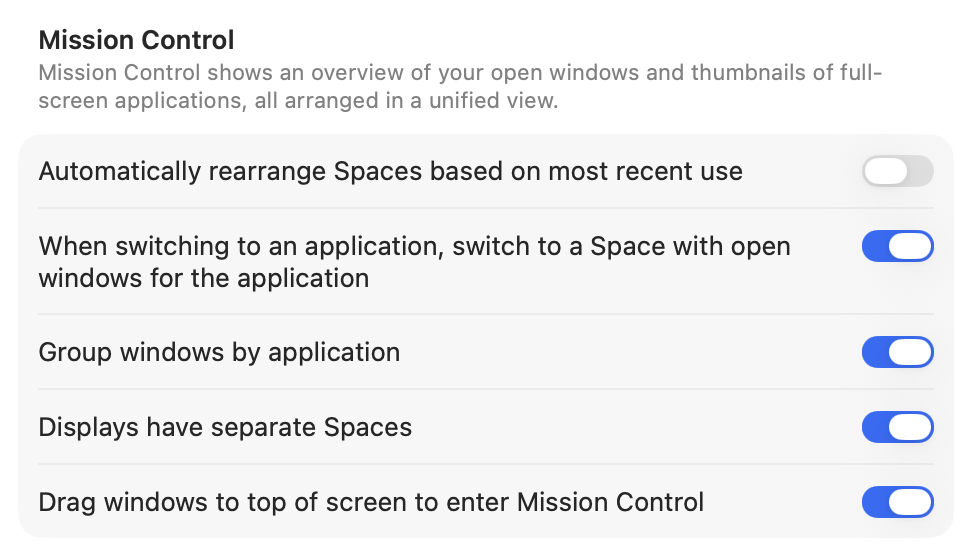
Command-Tab now keeps you on the desktop you're on.
How it works. When the app you pick has its windows on another desktop (Apple calls desktops "Spaces"), this setting decides whether macOS takes you there or leaves you where you are. Apple turns it on by default.
| Setting | What Command-Tab does | What you might see | Good for |
|---|---|---|---|
| On (default) | Moves you to a desktop that has a window of that app | The screen slides to another desktop | People who want Command-Tab to show a window, wherever it is |
| Off | Keeps you on the current desktop | Only the menu bar changes if the app has no window here | People who keep separate work on separate desktops |
Neither choice is great. With the setting on, Command-Tab pulls you off the desktop you're working on. With it off, an app whose windows are all on other desktops comes forward with only its menu bar, and you have to go find its desktop yourself. macOS makes you pick one problem or the other. The changes below make either one easier to live with.
The jump can also happen when the app has a window on the desktop you're on, if a window on another desktop was used more recently.
What else you can change.
- Keep your desktops in order. "Automatically rearrange Spaces based on most recent use", in the same section, is on by default. It moves your desktops around based on what you used last. Some people like that, but if you don't know it's on, it's confusing: your desktops change order, and you never quite know where your stuff will be. If you think of your desktops as fixed places (mail on the first, code on the second), turn it off. The desktop you jump to then stays where you left it.
- Keep an app on one desktop. Control-click the app's icon in the Dock, choose Options, and under Assign To choose This Desktop. Its windows then open there, so you always know where Command-Tab will take you. This suits apps you use in one place only, such as Mail.
- Move between desktops yourself. Control-Left Arrow and Control-Right Arrow move one desktop at a time. You can also turn on Control-number shortcuts for each desktop in System Settings > Keyboard > Keyboard Shortcuts > Mission Control.
- See every desktop at once. Control-Up Arrow opens Mission Control, with this desktop's windows in the middle and your other desktops along the top. Click one to go there.
- Switch between windows of the same app. Command-` (the key above Tab) moves between windows of the active app on the current desktop. More in our guide to switching between windows of the same app.
If the screen jumps and then bounces back
Some people see the screen slide to a full-screen app or another desktop, then slide straight back to where they started. A long-running Apple Community thread from the Sierra era traced this to how apps were assigned to desktops.
Each app in the Dock can be assigned to a desktop:
- Control-click the app's icon in the Dock.
- Choose Options.
- Under Assign To, choose All Desktops, This Desktop, Desktop on Display (if you have more than one display), or None.
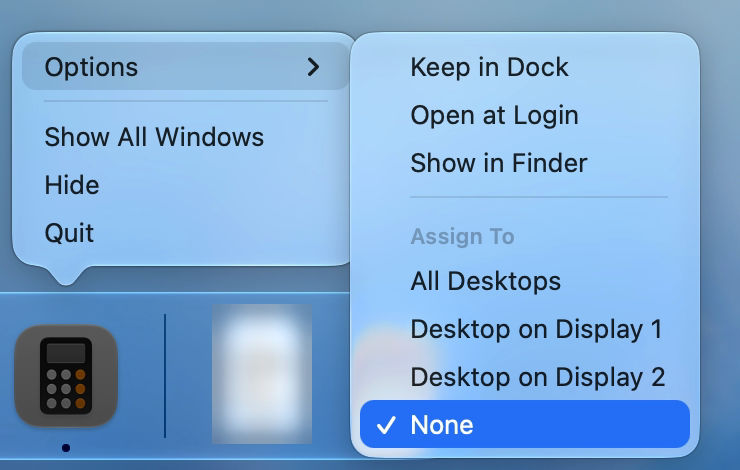
Set the apps involved to None. Check both the app you were switching from and the one you were switching to. None means the app opens its windows on whatever desktop you're using, which is what most people expect.
The Assign To choices only appear when you have two or more desktops. If you use a single desktop plus full-screen apps, add a temporary desktop first: open Mission Control (Control-Up Arrow), click the add button in the Spaces bar at the top, change the assignment, then remove the extra desktop.
If the app comes forward but no window shows up
The app's name is in the menu bar, but the screen looks the same. Usually the app has no open windows, or its windows are minimized. A neat little trick fixes both: hold the Option key when you switch, and the app comes forward with a window.
⌘+tabthen holdoption
- Press Command-Tab and move to the app, as usual.
- Press and hold Option.
- Let go of Command, then Option.
The app comes forward with a window. If it has a minimized window, that window opens. If it has no windows, you get a new one.
Why this happens. On a Mac, closing an app's last window usually leaves the app running. You can see this in the Dock, where a small dot stays under its icon. Minimized windows wait in the Dock too. Command-Tab brings the app forward, but it doesn't open or restore windows on its own. Holding Option tells it to.
Without the keyboard, click the app's icon in the Dock, which reopens a window in most apps, or press Command-N for a new window. For more ways, see our guide to restoring minimized windows with the keyboard.
If Option doesn't bring up a window. The app's windows are probably on another desktop or in full screen. To check, open the app's Window menu. Most apps list their open windows at the bottom of it.
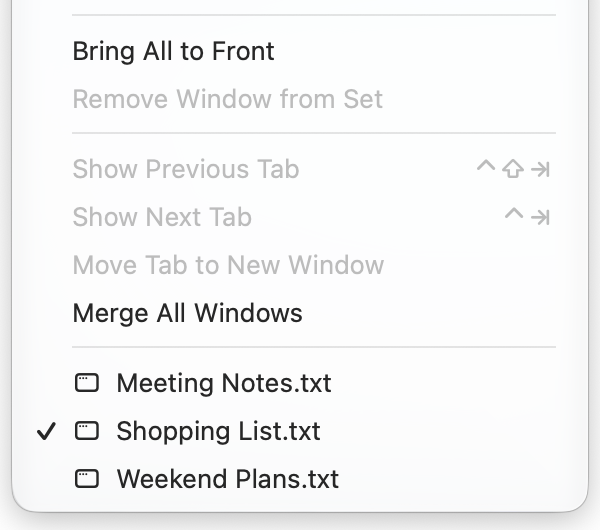
If windows are listed but none is on screen, they're on another desktop. With "When switching to an application, switch to a Space with open windows for the application" off, Command-Tab won't take you to them. Turn the setting on, or move between desktops with Control-Left Arrow and Control-Right Arrow. You can also open Mission Control with Control-Up Arrow to see all desktops at once and click the one you want.
A full-screen app gets its own Space, separate from your desktops, and follows the same setting. Turn the setting on, or use Control-Left Arrow and Control-Right Arrow to reach it. If you switch to that app often, take it out of full screen with Control-Command-F (or the green button at the top-left of the window) so it sits on a desktop with your other windows.
If the setting is already on and Command-Tab still won't leave the current desktop, skip to "If none of this helps." That pattern matches the most common report in Apple's forums, and the cause was in the user's account.
If none of this helps
If Command-Tab won't move you to an app on another desktop even with the setting on, or the bounce-back continues after setting Assign To to None, test outside your account.
Try a new user account. Choose Apple menu > System Settings, click Users & Groups, click Add User, and create a Standard account. Log out, log in to the new account, create a second desktop, open an app on each, and try Command-Tab. In one Apple Community case with 65 people reporting the same problem, Command-Tab worked in a guest account but not in the person's own. That points to something in your account: a setting file, a login item, or an app that manages windows or keyboard shortcuts.
Try Safe Mode. Safe Mode starts your Mac without login items and third-party extensions. On a Mac with Apple silicon, shut down, then press and hold the power button until "Loading startup options" appears. Select your startup disk, press and hold Shift, and click Continue in Safe Mode. On an Intel-based Mac, restart and hold Shift until the login window appears. You'll see "Safe Boot" in the menu bar. Restart normally to leave.
If Command-Tab works in Safe Mode, a login item or extension is the likely cause. Review them in System Settings > General > Login Items & Extensions and turn them off one at a time. Window managers, key remappers, other app switchers, screen sharing tools and virtual machines are the usual suspects. If it works in the new account but not in Safe Mode, the cause is in your account's settings, and moving to a fresh account is the reliable fix.
What macOS can't do here
The native options have two limits worth knowing before you spend more time on settings.
The setting is a two-way choice. You can have Command-Tab jump to another desktop, or have it stay put and sometimes show nothing. There's no option for "show me where the windows are and let me decide."
Command-Tab can't target a window. If an app has windows on two desktops, macOS picks which one you get. Command-` helps only with windows on the desktop you're already on.
A switcher that handles both problems
macOS makes you choose between getting pulled to another desktop and seeing no window at all. fswitcher replaces Command-Tab on the same shortcut, and you don't have to choose. It switches both apps and windows: its app tiles work the way Command-Tab always has, and its window tiles list every window. Use either one as your main switcher, or both. It needs macOS 26 or later.
Each display gets its own switcher with its own apps and windows, grouped by desktop. You see where you'll land before you let go, so you only change desktops when you pick something on another one. Switching on one display leaves the others as they are.
Apps with no open windows sit in their own row below the rest, so you can tell at a glance which ones have nothing to show. Picking one opens a new window, and picking a minimized window brings it back.
FAQ
Why does Command-Tab take me to another desktop?
Because the app you picked has its windows on that desktop, and the setting "When switching to an application, switch to a Space with open windows for the application" is on. It's on by default. Turn it off in System Settings > Desktop & Dock > Mission Control to stay on the current desktop.
How do I stop Command-Tab from switching desktops?
Open System Settings, click Desktop & Dock, scroll to Mission Control, and turn off "When switching to an application, switch to a Space with open windows for the application." After that, switching to an app with no window on the current desktop shows only its menu bar.
Why does Command-Tab show the app's menu bar but no window?
Command-Tab activates the app, not a window. Usually the app has no open windows, or its windows are minimized. Press Command-Tab, move to the app, and hold Option before you let go of Command. The app comes forward with a window. If that doesn't work, its windows are on another desktop or in full screen and the switch-to-a-Space setting is off.
Why does my Mac switch to another desktop and then jump back?
This usually comes from how apps are assigned to desktops. Control-click the app's Dock icon, choose Options, and set Assign To to None. The option only appears when you have two or more desktops.
Can I make Command-Tab go to a specific window?
No. Command-Tab chooses an app, and macOS chooses the window. Command-` moves between windows of the current app on the current desktop. To pick any window directly, use Mission Control, the app's Window menu, or a third-party switcher that lists windows.
Does this work differently with more than one display?
The setting works the same way. If "Displays have separate Spaces" is on, each display has its own desktops, so the jump can happen on a display you weren't looking at. If the switcher itself shows up on the wrong screen, see our guide on why the switcher appears on the wrong display.