 fswitcher
 › Guides
How to switch between windows of the same app on a Mac
Command-Tab on a Mac switches between apps, not windows. If you have three Safari windows open, Command-Tab brings Safari forward and stops there. To move between those windows, press Command-` (the key above Tab on a US keyboard). Shift-Command-` goes back the other way.
That shortcut handles most cases, but it has gaps. It skips minimized windows, windows on other desktops and full-screen windows, and on some keyboards it seems to do nothing. Below are the ways macOS lets you reach a specific window, what each one can't reach, and what to check when Command-` stops working.
The short answer
- Next window of the app you're using⌘+`
- Previous window⇧+⌘+`
- See all of the app's windows at oncecontrol+↓
- See all open windows from all apps (Mission Control)control+↑
On a non-US keyboard the ` key may be in a different spot. On a German layout, for example, the shortcut is Command-< (the key next to the left Shift key). More on keyboard layouts
Why Command-Tab switches apps, not windows
The Mac is organized around apps. The menu bar belongs to the app in front, and an app can stay open with no windows at all. Command-Tab follows that model. In Apple's list of Mac keyboard shortcuts, it moves between open apps in the order you last used them, and windows don't come into it.
When you pick an app in the switcher, macOS brings that app forward with its most recent window on top. The switcher has no list of windows, so you can't pick one from there.
Windows works differently. Alt-Tab on a PC lists windows, so two Chrome windows are two entries. If you moved from Windows, this is usually the first thing that feels off.
Command-Tab can also take you to another desktop, or show the app with no window in front, depending on a Mission Control setting. That has its own guide: Command-Tab jumps to another desktop, or shows no window.
Command-`: the built-in window switcher
Command-` (Command plus the grave accent key, often called backtick) moves to the next window of the app you're using. Shift-Command-` moves to the previous one. Hold Command and tap ` to step through the windows. There's no on-screen list or preview. Windows come to the front one at a time.
Command-` only reaches open windows of the front app on the current desktop. It skips these:
- Minimized windows. They stay in the Dock. To bring back the most recent one as you switch, select the app with Command-Tab, hold Option, release Command, then release Option. If you minimize a lot, see how to get minimized windows back from the keyboard.
- Windows on other desktops. If an app has windows on two desktops, Command-` only cycles through the ones on the desktop you're looking at.
- Full-screen windows. Each full-screen window is its own space, so Command-` can't reach it from outside. Use Control-Left Arrow and Control-Right Arrow to move between spaces, or open Mission Control.
- Windows outside the current Stage Manager set. With Stage Manager on, Command-` cycles through the windows in the set in front of you. That can include another app's window in the same set and leave out this app's windows in other sets.
- Tabs. Tabs in Safari, Finder and many other apps are not separate windows. Use Control-Tab and Shift-Control-Tab to move between tabs.
If the window you want is in one of these groups, Command-` will look broken even though it's working as designed. The methods below cover those cases.
Other ways to get to a specific window
All of an app's windows (Control-Down Arrow)
Control-Down Arrow spreads out all open windows of the front app so you can see them at once. Click the one you want. Minimized windows don't show here, and if all of the app's windows are minimized, you see "No available windows."
You can also open it straight from the Command-Tab switcher. Hold Command, press Tab until the app you want is selected, then press Up Arrow or Down Arrow while still holding Command. The app's windows spread out the same way.
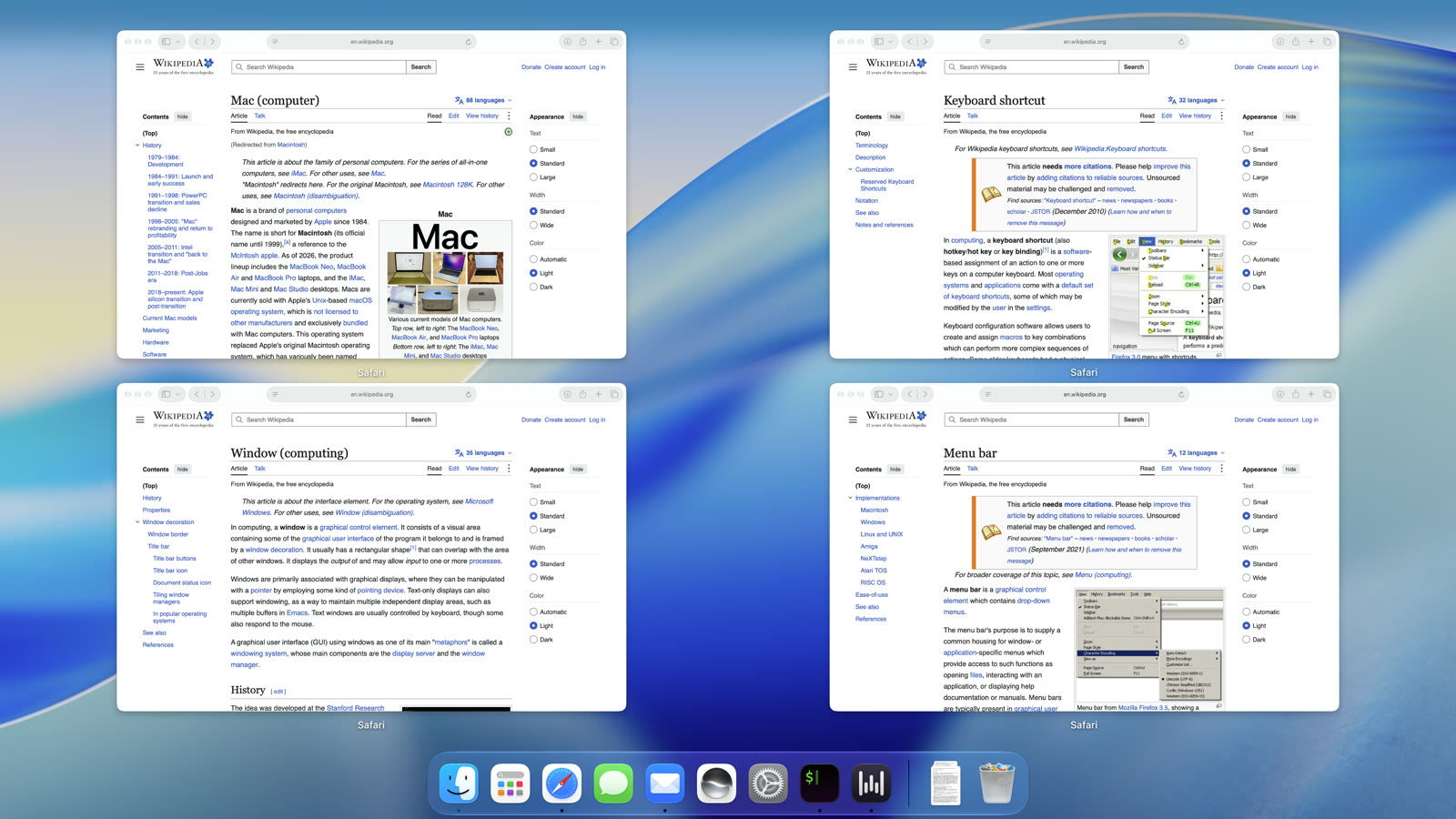
Other ways to open it:
- A trackpad gesture: turn it on in System Settings > Trackpad > More Gestures.
- A hot corner set to Application Windows: System Settings > Desktop & Dock > Hot Corners.
- Control-click an app's icon in the Dock and choose Show All Windows.
This view doesn't help with full-screen windows. Use Control-Left Arrow and Control-Right Arrow for those.
Mission Control (Control-Up Arrow)
Mission Control shows all open windows on the current desktop, from all apps, with your other desktops and full-screen apps as thumbnails along the top. Click a window to go to it, or click a thumbnail at the top to switch spaces. You can also open it by swiping up on the trackpad with three or four fingers, depending on your Trackpad settings.
Minimized windows and windows of hidden apps don't appear in Mission Control. If an app has many windows that overlap, turn on Group windows by application in System Settings > Desktop & Dock > Mission Control to stack each app's windows together.
The Window menu
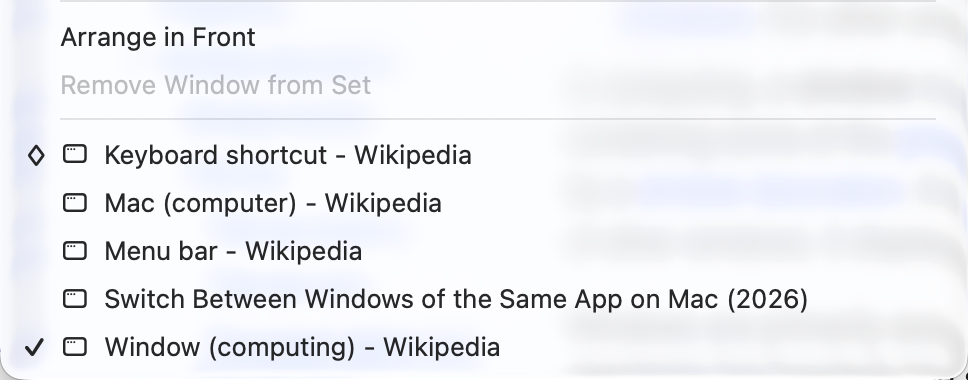
Most apps list their open windows at the bottom of the Window menu in the menu bar. The front window has a checkmark, and minimized windows have a diamond. Choosing one brings it forward, including a minimized one. It's slower than a shortcut, but it lists windows by title, which helps when several windows look alike.
The Dock
Control-click an app's Dock icon, or click and hold it, to see a list of its windows. You can also right-click it, if you have right-click turned on. Minimized windows are marked with a diamond. If "Minimize windows into application icon" is off (the default), you can also restore a minimized window by clicking its thumbnail on the right side of the Dock.
Full-screen windows (Control-Left Arrow and Control-Right Arrow)
Full-screen windows live in their own spaces, next to your desktops. Control-Left Arrow and Control-Right Arrow move one space at a time. On a trackpad, swipe left or right with three or four fingers.
What each method can reach
| To do this | Use | What you get | What it can't reach |
|---|---|---|---|
| Step to the app's next window | Command-` (add Shift to go back) | The app's windows come to the front one at a time | Minimized windows, other desktops, full screen |
| See all of one app's windows | Control-Down Arrow | The app's open windows spread out, and you click one | Minimized windows, full screen |
| See every window | Control-Up Arrow (Mission Control) | All open windows on this desktop, and your other desktops along the top | Minimized windows, hidden apps |
| Pick a window by name | The Window menu in the menu bar | A list of the app's windows by title | Nothing: minimized ones are listed with a diamond |
| Pick a window from the Dock | Control-click the app's Dock icon | The same list of windows by title | Nothing: minimized ones are listed with a diamond |
| Get to a full-screen window | Control-Left Arrow, Control-Right Arrow | The next desktop or full-screen app, one at a time | Windows on the desktop you're on |
macOS has no built-in way to see one list of windows from all apps across desktops. That's the gap third-party window switchers fill (covered below).
Command-` not working? Check these in order
Start with a quick test. In Finder, press Command-N twice to open two windows, then press Command-`. If it switches in Finder, the shortcut works and the problem is with one app. If it fails in Finder too, the problem is system-wide.
1. Make sure there's a window it can reach. Command-` does nothing if the app has one window on this desktop and the rest are minimized, on another desktop, or in full screen. This is the most common reason it seems broken. Check the app's Window menu, which lists all of its windows, to see where they are.
2. Check that the shortcut is turned on. Open System Settings > Keyboard and click Keyboard Shortcuts. Select Keyboard in the sidebar and find Move focus to next window. Its checkbox should be on and the shortcut should show Command-` (or the key for your layout). If someone changed it, click Restore Defaults at the bottom of that list.
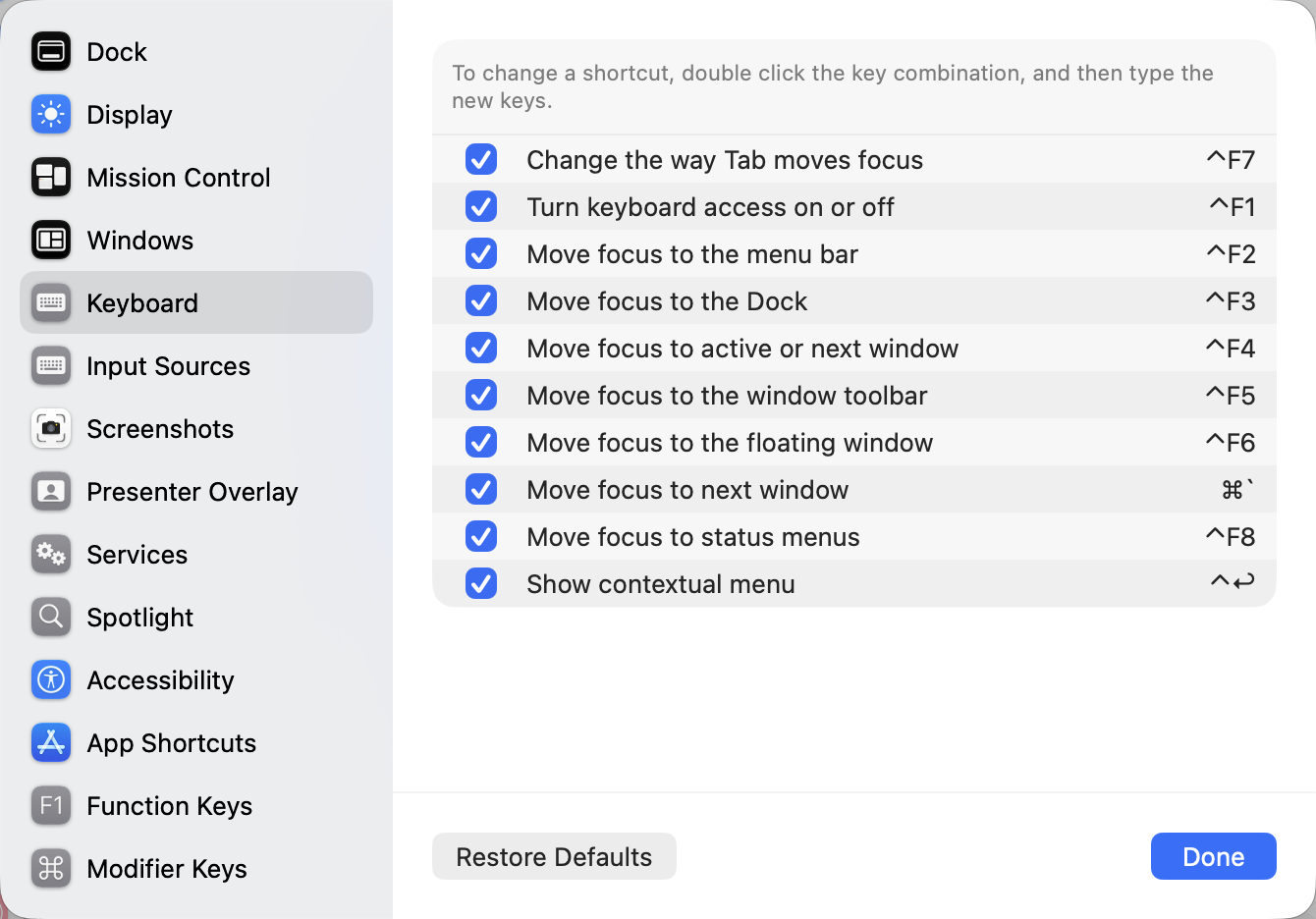
3. Check your keyboard layout. The shortcut follows a key position, not the ` character. On a US keyboard that's the key above Tab. On other layouts it can be a different key: on a German keyboard it's Command-<, next to the left Shift key (see the diagram above). If you switch between input sources (System Settings > Keyboard, under Text Input), the key that works can change with the layout.
If the key is awkward or missing on your keyboard, set your own. In the same Keyboard Shortcuts list, double-click the shortcut next to Move focus to next window, press the new keys, and click Done. Pick a combination no app uses. One user who chose Control-Command-N found it clashed with Finder's New Folder with Selection, and switched to Control-Option-Command-N.
4. Check whether the app handles windows its own way. Some apps assign Command-` to their own command, which overrides the system shortcut while that app is in front. Look in the app's own settings for keyboard shortcuts. Some apps also open documents as tabs rather than windows, and windows dragged out of those tabs may not respond to Command-` (users reported this with Affinity apps). If you're trying to move between tabs, use Control-Tab instead.
5. Close stuck reminder or pop-up windows. In the Apple Community thread on this problem, a Microsoft Office user found Command-` stopped working whenever an Office reminder window was open, and started working again once it was dismissed or snoozed. Other small panels can do the same. Close any reminder, alert or floating panel the app has open and try again.
6. Quit screen sharing, remote desktop and virtual machine apps. These can capture keyboard shortcuts. On macOS Sequoia, users reported that quitting the Screen Sharing app brought back Command-Tab, Command-` and other shortcuts. A virtual machine in front of you captures the keys while it has focus.
7. Reset Stage Manager and Spaces. One user fixed a stubborn case with this sequence: turn on Displays have separate Spaces (System Settings > Desktop & Dock > Mission Control), log out and back in, turn off Stage Manager, turn off Displays have separate Spaces, then log out and back in again. Changing Displays have separate Spaces only takes effect after you log out. If you normally use separate Spaces, turn it back on at the end.
8. Restart. If none of this works, restart the Mac and test in Finder again. If it works after a restart and breaks later, an app that starts at login is the likely cause.
If you want one switcher for every window
None of the built-in options give you one list of windows from all apps, with previews, that you can step through with Tab. For that you need a window switcher app. Two worth looking at:
Our app, fswitcher, gives you two ways to switch: app tiles, like the Command-Tab you know, and window tiles, which show every window. Pick one for Command-Tab, or keep apps on Command-Tab and put windows on Option-Tab. Windows are grouped by display, desktop and full screen.
fswitcher was built to look, feel and work like the native Command-Tab switcher, so everything you already do with it works the same way. On top of that, it adds the things we felt were missing. For windows, that's these:
- Next window of the same app⌘+`
- Go to window 1 to 9⌘+1–9
- Close the selected window⌘+W
- Show only the windows of the app you're inoption+`
With app tiles, each of the selected app's windows gets its own thumbnail above the switcher, so you can see them all before you pick one, and ` or 1 to 9 slides between them. Minimized windows show in its switcher too, and switching to one brings it back. It's a one-time purchase of $14.99 with a 7-day free trial, and it needs macOS 26 or later. See how fswitcher works
AltTab is free and open source. By default it uses Option-Tab and shows thumbnails of windows from all apps, including minimized and hidden windows and windows on other desktops. It has many settings, including the option to bind it to Command-Tab, and a paid Pro tier for extra features. If you already use it and it's acting up, see AltTab not showing all windows or AltTab slow or laggy.
For a side-by-side look at the two, see fswitcher vs AltTab.
FAQ
Why does Command-Tab only switch apps on a Mac?
macOS treats the app as the main unit: the menu bar belongs to the front app, and an app can run with no windows. Command-Tab switches to the next most recently used app and brings it forward with its most recent window on top. To move between that app's windows, use Command-`.
What is the keyboard shortcut to switch between windows of the same app?
Command-` (the key above Tab on a US keyboard) moves to the next window of the front app, and Shift-Command-` moves to the previous one. Control-Down Arrow shows all of the app's open windows at once, and you click the one you want.
Why is Command-` not working on my Mac?
The most common reasons are that the other windows are minimized, on another desktop or in full screen, which Command-` skips. Otherwise, check that Move focus to next window is turned on in System Settings > Keyboard > Keyboard Shortcuts > Keyboard, check your keyboard layout, and close any reminder or pop-up windows the app has open. The full list is in the troubleshooting section above.
How do I switch windows on a Mac with a non-US keyboard?
The shortcut follows a key position, so it may not be the ` key on your layout. On a German keyboard it's Command-<. You can set any combination you like in System Settings > Keyboard > Keyboard Shortcuts > Keyboard, under Move focus to next window.
Can I switch to a minimized window from the keyboard?
Not with Command-`. For the most recent one, select the app in the Command-Tab switcher, hold Option, release Command, then release Option. Control-Down Arrow doesn't help here, since it leaves minimized windows out. To pick a specific one, use the app's Window menu or its Dock menu, where minimized windows are marked with a diamond. More options are in Command-Tab doesn't restore minimized windows.
Is there an Alt-Tab for Mac that shows all windows?
Not built in. Mission Control (Control-Up Arrow) shows all windows on the current desktop, but you pick with the mouse. For a keyboard switcher that lists windows from all apps, use a third-party app such as fswitcher or AltTab.